平行投影みえ~る
- ダウンロード商品¥ 500
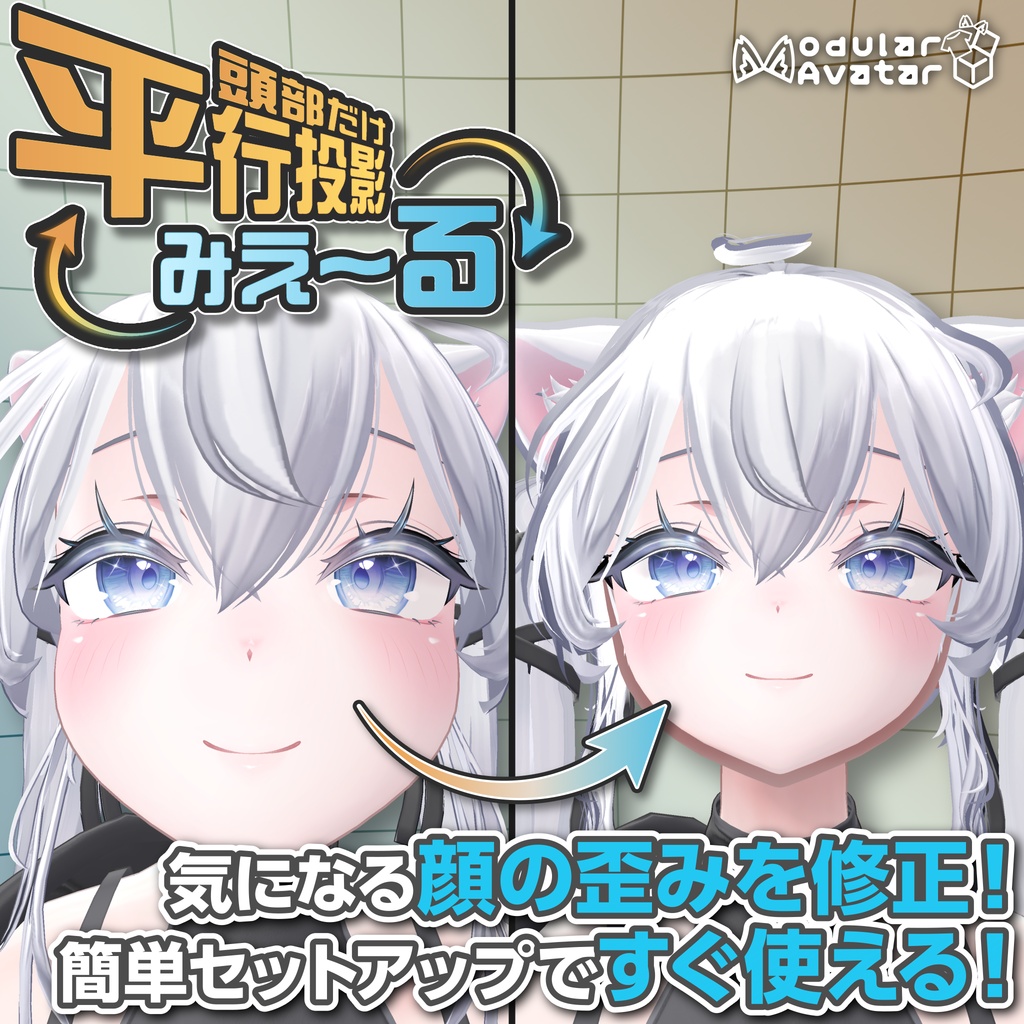
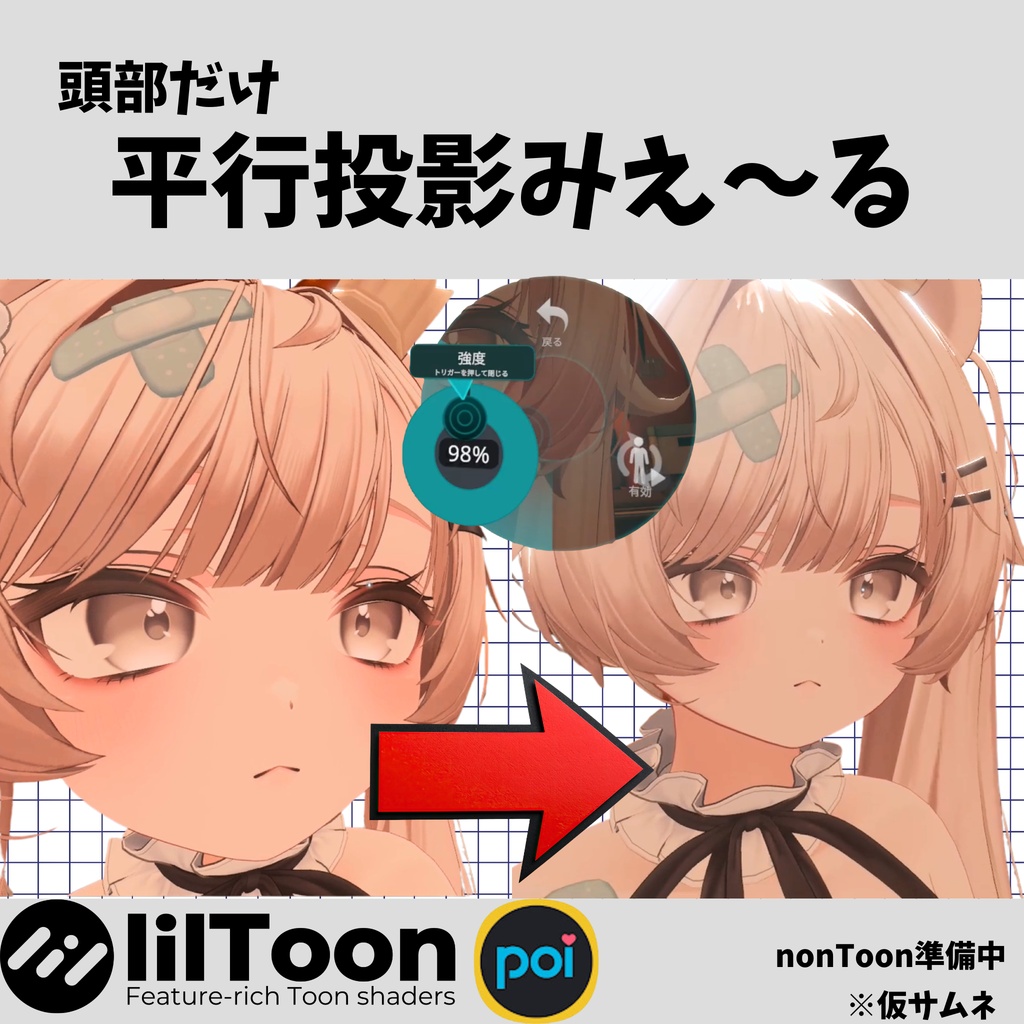
VRChatアバターの頭部だけを局所的に平行投影に見せるギミックです。 透視投影だと、カメラが顔に近づくほど鼻や輪郭が伸びて見えます。自撮りカメラや至近距離での会話でよく気になる歪みですが、これを頭部だけ軽減します。体側は通常の透視投影のままで、頭と体の境目で見た目がなるべく破綻しないように工夫しています。 動作の様子はXをご覧ください。 https://x.com/hamnchu_pococha/status/2078765461186203955?s=20
できること
・頭部のパース歪みを軽減(近距離ほど効果を感じやすいです) ・Exメニューにトグルと強度ラジアルが自動生成されます。効果のON/OFFと強さをその場で調整できます ・リムライトやマットキャップ、影、フォグなどの見た目は通常描画と同じままです。座標のxyだけを変えている作りなので、光の当たり方に違和感が出にくいです ・VRでの両眼視にも対応しています。左右の目で別々に計算すると頭が二重に見える不具合が出るため、両目の中間点を基準に計算しています
導入方法
1.Hierarchyでアバタールートを右クリック→「はむ屋/平行投影みえ~る をセットアップ」 2.そのままアップロード 3.Exメニューに「平行投影」サブメニューが自動生成されます ※Headアーマチュア設定以外のオブジェクトの平行投影したい場合は平行投影みえ~るコンポーネントのAdditinal Renderersに対象のレンダラーを追加してください。
対応シェーダー
lilToon / nontoon / Poiyomi Toon に対応しています。(※nontoon / Poiyomi Toon は最低限動きますが、開発中です。)それ以外のシェーダーは対象外です。 Poiyomiは仕組み上、導入済みのPoiyomi本体にコードを注入したフォークを使っています。Poiyomiを更新した際は、メニューから再生成が必要です(UnityPackage内同梱のREADMEに手順を書いています)。Fur・Grab Pass・Worldのバリアントは対象外です。
動作環境・注意点
・事前にModuler Avatarを導入してください。 ・PC専用です。Questはカスタムシェーダーが使えないです。 ・Humanoidボーン構成とHeadボーンが必要です ・Avatar Optimizer(AAO)のTrace and Optimizeを使っている場合、対象のレンダラーは自動で除外登録されます(マージされるとギミックが機能しなくなるためです) ・特定のレンダラーだけ対象から外したい・追加したい場合は、コンポーネントのInspectorから設定できます ・他のギミックやツールとの干渉は保証できかねます ・アバターによってはアウトラインが少し目立つことがあります。
更新履歴
v1.1.0 ・lilToon透過対応 ・MAでHeadに付けて場合も自動適用 v1.0.0 ・新規作成
利用規約
再配布禁止
EN
Here is the English translation of your text, formatted for clarity, which you can use for your product page or documentation: This is a gimmick that applies a local orthographic projection effect specifically to the head of a VRChat avatar. With standard perspective projection, the closer the camera gets to the face, the more the nose and facial outlines appear stretched. This distortion is often noticeable when using a selfie camera or during close-range conversations. This tool reduces that distortion for the head area only. The body remains in standard perspective projection, and the boundary between the head and body is designed to prevent visual breakdowns as much as possible. Check out X (Twitter) for a demonstration of how it works: https://x.com/hamnchu_pococha/status/2078765461186203955?s=20 Features Reduces Perspective Distortion on the Head: The effect is more noticeable at closer distances. Automatic Ex Menu Generation: A toggle and an intensity radial puppet are automatically added to your Ex Menu. You can turn the effect ON/OFF and adjust its strength on the fly. Consistent Lighting and Shading: The appearance of rim lights, matcaps, shadows, fog, and other visuals remains identical to normal rendering. Because the tool only alters the XY coordinates, it avoids unnatural lighting behavior. VR Binocular Vision Support: If calculated for each eye separately, the head would appear doubled. To prevent this, the calculation is based on the midpoint between both eyes, ensuring it works seamlessly in VR. Setup Guide Add the component to your avatar. (Alternatively, you can right-click your avatar's root in the Hierarchy and select "はむ屋 / Setup [Tool Name]"). Upload it as is, or test it in Play mode using GestureManager. An "Orthographic Projection" submenu will automatically be generated in your Ex Menu. The avatar and original assets in your scene are not modified. The effect is automatically applied during the upload process via NDMF build processing. Note: If you want to apply orthographic projection to objects other than those in the head armature, please add the target renderers to the "Additional Renderers" list in the component. Supported Shaders Supports lilToon, nontoon, and Poiyomi Toon. (Note: nontoon and Poiyomi Toon are currently in development but function at a baseline level). Other shaders are not supported. Regarding Poiyomi: Due to how the shader works, the tool uses a fork that injects code into your already-installed Poiyomi package. When you update Poiyomi, you will need to regenerate this from the menu (instructions are provided in the README included in the UnityPackage). Fur, Grab Pass, and World variants are not supported. Requirements & Notes Please make sure Modular Avatar is installed beforehand. PC Only: Quest does not support custom shaders. Requires a Humanoid bone structure and a Head bone. If you are using Avatar Optimizer's (AAO) Trace and Optimize, the target renderers will be automatically excluded (this is because the gimmick will stop working if the meshes are merged). If you want to manually include or exclude specific renderers, you can configure this from the component's Inspector. Compatibility or interference with other gimmicks and tools cannot be guaranteed. Terms of Use Redistribution is prohibited.
KO
상품 페이지나 매뉴얼에 사용하실 수 있도록 정리된 한국어 번역입니다. VRChat 아바타의 머리 부분만 국소적으로 평행 투영(직교 투영)으로 보이게 하는 기믹입니다. 원근 투영(투시 투영)에서는 카메라가 얼굴에 가까워질수록 코나 윤곽이 늘어나 보입니다. 셀카 카메라나 근거리 대화에서 자주 신경 쓰이는 왜곡인데, 이를 머리 부분만 경감시켜 줍니다. 몸 쪽은 일반적인 원근 투영을 유지하며, 머리와 몸의 경계에서 시각적으로 최대한 어색함이 없도록 고안했습니다. 작동 모습은 X(트위터)를 확인해 주세요. https://x.com/hamnchu_pococha/status/2078765461186203955?s=20 주요 기능 머리의 원근 왜곡 경감: 거리가 가까울수록 효과를 더 잘 느낄 수 있습니다. Ex 메뉴에 토글 및 강도 조절 라디얼 자동 생성: 효과의 ON/OFF와 강도를 그 자리에서 바로 조절할 수 있습니다. 림 라이트, 맷캡, 그림자, 포그 등의 외관은 일반 렌더링과 동일하게 유지: 좌표의 XY만 변경하는 구조이므로 빛을 받는 방식에 위화감이 생기지 않습니다. VR 양안시 지원: 좌우 눈을 따로 계산하면 머리가 이중으로 겹쳐 보이는 문제가 발생하므로, 양 눈의 중간점을 기준으로 계산하여 VR에서도 자연스럽게 작동합니다. 적용 방법 아바타에 컴포넌트를 추가합니다. (Hierarchy에서 아바타 루트를 우클릭 → 「はむ屋 / 平行投影みえ~る をセットアップ(평행 투영 보이기 셋업)」을 선택하셔도 됩니다.) 그대로 업로드하거나, GestureManager에서 Play를 누릅니다. Ex 메뉴에 '평행 투영(平行投影)' 서브 메뉴가 자동 생성됩니다. 씬(Scene) 상의 아바타나 원본 에셋은 변경되지 않습니다. NDMF의 빌드 시 처리 과정을 통해 업로드할 때 반영됩니다. 참고: Head 아마추어 설정 이외의 오브젝트에 평행 투영을 적용하고 싶은 경우에는 컴포넌트의 'Additional Renderers'에 대상 렌더러를 추가해 주세요. 지원 셰이더 lilToon, nontoon, Poiyomi Toon을 지원합니다. (※ nontoon 및 Poiyomi Toon은 최소한의 동작은 가능하나, 현재 개발 중입니다.) 그 외의 셰이더는 지원하지 않습니다. Poiyomi 관련: 구조상 이미 설치된 Poiyomi 본체에 코드를 주입한 포크(fork) 버전을 사용합니다. Poiyomi를 업데이트할 경우, 메뉴에서 재생성해야 합니다(UnityPackage 내에 동봉된 README에 절차가 적혀 있습니다). Fur, Grab Pass, World 변형(Variant)은 지원 대상에서 제외됩니다. 요구 사항 및 주의 사항 사전에 Modular Avatar를 설치해 주세요. PC 전용입니다. Quest는 커스텀 셰이더를 사용할 수 없습니다. Humanoid 본 구조와 Head 본이 필요합니다. Avatar Optimizer(AAO)의 Trace and Optimize를 사용하는 경우, 대상 렌더러는 자동으로 제외 등록됩니다. (메시가 병합되면 기믹이 작동하지 않기 때문입니다.) 특정 렌더러만 대상에서 제외하거나 추가하고 싶은 경우, 컴포넌트의 Inspector에서 설정할 수 있습니다. 다른 기믹이나 툴과의 간섭(충돌) 여부는 보장할 수 없습니다. 이용 약관 재배포 금지